& the slipper still fits
Showing posts with label photoshop tutorial. Show all posts

Useful Photoshop Actions for your blog photos


We've all heard of them; we've all seen them all over the place -- photoshop actions. Do we know how to use them? Or usefully use them? Eh...that's the question. Today, I'm dissecting the photoshop action, and sharing with you some of my favorites.

First things first. What is a photoshop action? Well, its like the condensed, do-it-for-ya type of tutorial. An action is a file, and when you tell the file to play it applies different actions (like saturation, curves, etc) for you in a pre-set template. When you press play, the automatic file does all the work for you.You can find actions all over the place, for many different things, but favorites are played with photo filter actions. For example, Instagram.


Instagram is a smart phone (free!) application which will change your photos at the touch of your finger. These "actions" can add interest, contrast, and a dynamic feel to your photos without having to know a single principle about photoshop. Plus, its super quick and easy. And I suspect Instagram is the reason photoshop actions themselves are so huge right now. And without going into each instagram editing feature (you can see them on the right), I will say that you can find actions/filters/tutorials to achieve their effects. Try here and here.

I advocate -- of course I do, I'm writing this post -- using photoshop. You see, when you post photos for your blog, not only is it wonderful to use pictures you've taken, but to add a little pinash to them. By using a few choice actions, you're able to transform a photo and adjust key elements of that transformation to be prefect just for your blog. Not to mention the time that you can save by using an action on a blog photo.   Below are some of my favorite actions to use, shown with a photo I would post here on rusty.

Freezing Blue by Amatorka
Cute Pink Effect by SilverSkins
 Autumn #2 by Freezy
Sundown by lieveheersbeestje
 a15 by Etikate

Now for the fun part - how to use them! Once you've downloaded the file from where ever you download it from, unzip it and save it in a place you will remember. To load the action in photoshop, use the following paths,

To open the actions pane: Window > Actions 
To load an action:  The "More" button (far right top corner of the pane)   > Load Actions   > pick the action you want to use (remember where you saved the file?)  > Load

Now, you just have to pick the photo you want to work with. Then, open the action pane, select the action, and press play. Want to see it in photoshop? (It's way easier to understand, I think.) Click on the image below:


Actions made easy? I think so! Even if you're not the most advanced photoshop aficionado, actions can help your photos look trend setting and fashion forward. 
Photoshop Basics - File types and saving photos


It never fails, does it, dear reader? That the sooner your finished you next photoshop masterpiece, you have no idea how to save it - "should I save my photo as a .jpg?" you ask; "why can't I preview my .psd!" you lament; or "what the hell is a .tiff?!". Well, I'm here to clear that up - at least some of the file type definitions at least and which ones are best to use if you're going to upload your photos to a blog.

It's a file type! It can't define my photo!
Actually, I hate to be the barrier of bad news, my dear reader, but the file type most certainly can define your photo. Sure, you've spent time perfecting it in photoshop (a painful process for almost any user) you've saved it and uploaded it exactly how you're supposed to, but if you have the file wrong, it can show up grainy, pixelated, or the colors can be just downright wrong.

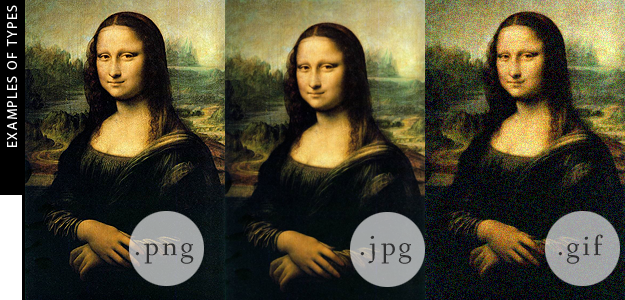
Here's the downlo - file types are based off a mathematical algorithm specifically designed to study the amount of color, or color patterns, in a file and compress them accordingly. This compression is the data that is saved from your photo. Then when the file is processed through your interface (either your documents folders or online) the algorithm is able to rebuild the photo with the data saved. Think the paint colors Da Vinci used for the Mona Lisa. It's essentially turning dear Mona into a paint by numbers your internet browser fills in for you. How many numbers you have to paint is dependent on how you save Mona to start with.


.tif/.tiff - To save a file .tif is to save the Mona Lisa in its entirety. It's not a paint by numbers, but an exactly replica of the original. There is rarely any compression on a tiff file and should be absolutely no change between your pre-saved file and your final .tif file. And what do exact replicas cost, dear reader? In this case, .tif files cost you a whole bunch of computer space. When you save a .tif, you're saving for detail, you're also probably saving and already large image file. Be warned, .tifs are normally used for print media and should not be saved for your online blog. Most internet interfaces don't support their use, and even if they did, most people wouldn't stick around to have the file load.

.png - Dear reader, .png is the dear sweet cousin to the .tif file. After the .tif it saves the most amount of color information and is able to save your files as exact as possible without breaking your computer space bank. If you're saving anything under 1,000px by 1,000px, I'd go for .png. .Png is especially handy if you have "transparent" space on your image. But, we'll get to that later.

.gif - If .png is the dear sweet cousin to the .tif file, .gif is that cousin you don't invite to the family reunion -- or at least not the nice part anyway. Gif files are only able to save a maximum of 256 colors. if you only have 2 to 3 colors in your image, then gif is a good way to go. It takes up a minimum amount of data space and allows for quick and easy loading on a website. (I argue so does a .png nowadays too...)

.jpg - A .jpg is the most used, and most beloved file type around. Why? Because almost all photos taken on a digital camera save as a .jpg. It dances that fine line between quality and file size and is adjustable so that you can choose which is most important when you're saving it. The algorithm for a .jpg takes the most prominent colors and focuses on that data, while discarding other color data in order to compress the overall file. Larger wallpapers for your desktop, family photos, and other larger items are strong examples of good .jpg usage.

.psd - a .psd is purely a photoshop file, and if you have a Windows system, you will not be able to see a file saved as a .psd, let alone view the preview. A .psd saves all the layers, history, and other important data used in creating the file. Images saved as a .psd are usually works in progress or templates that you are going to go back and work with the next time you use photoshop. .psd files and not viewable in a browser if you are using a Windows operating system.

Saving images for the internet
Ultimately, if you want to make a photo/image for your website, the ideal format for it is a .png. They load faster, look cleaner, and can be specifically optimized for online use through photoshop. But just in case you're . jpg devoted, I'll show those steps too.

But before you save, you've got to start your new image properly as well:

Saving a .png file:

Saving a .jpg file:


Really Heather, what's the difference between a .jpg and a .png?
See all that grey in those examples above? If those images weren't .png, that grey would look grainy and the type wouldn't be as clear. .JPG is excellent for colorful images, but not for images where detail is your driving force. You want sharp images with transparent sections - go .png. 

AUSTEN-ESQUE ORNAMENTS

This Christmas I wanted to do something different with my Christmas tree. It's always dolled up with reds and golds and glitter, and I love it, but this year I thought that an Austen twist would be refreshing and fun. But first, I had to find a quick and cheep way to make an austen-equse ornament. I always love the beautiful silhouette portraits so common from Austen's time and decided I would start there. I made 16 ornaments in this batch, so all the supply list numbers reflect that amount.

For this Project you will need

Silhouettes of chosen family members (or your favorite actors, writers, pets)
4 sheets of White Paper/ Any color construction paper
Scissors: plain and/or decorative
Ribbon (2-3 yards)
Photoshop & some knowledge of the pen tool (the quick and easy way)

For these ornaments, I used photoshop to make the silhouettes. You could of course, make them by hand. I found photoshop a quick and simple answer to hand drawing all those profiles. Click the photos to see the larger versions.


1. Take silhouette photos of your family.

2. Open the photos in photoshop as a copy.

3. Use the pen tool to make a path around the whole silhouette, remember you can touch up the lines on your silhouettes and not fundamentally change the look of your subjects. It doesn’t make for a completely true likeness, but your family will probably thank you later if you photoshop out their double chin.

*Pen tool tip: Hold down the alt button and click the anchor point to remove a leading direction line. This makes doing the silhouette by hand infinitely easier.


4. Fill the path (right click inside completed path) with black, or any other color you prefer. For mine, I’m using plain black and white and embellishing with colored paper later. When the path is filled, right click in your path again and select Delete Path.


4A. If you have spots in your silhouette you do not want filled with black (ie open spaces between ponytail and head): Follow step 3 and Fill Path with white or contrasting color.

In mine, I’ve decreased the opacity of the PATH layer to see the holes. If not, all you see is the black silhouette and not the picture underneath. I do not use a second layer for this white path. I fill path in the same layer.


5. Return the opacity back to normal. Your silhouette is done!
I add a new layer between the photo and the PATH layer and fill it white.


6. Resize for printing. I want my silhouettes to be about 4 inches high and able to cut in an oval shape. So I’m saving them that way in photoshop, but I will also tweak them in InDesign. The below photo breaks down the image resize. To save without using InDesign, save file with Height: 4.0 inches x Width: --- (size adjusted by photoshop).


In InDesign, I lay out a bunch to print at one time, looking like this:


But you absolutely DO NOT need InDesign for this project. Just make sure you save them the right size in photoshop and you’ll be good to go. I however, was making A LOT of them and wanted the oval outline to help me keep my cutting on task.

7. Cut out ovals and 1 plain oval to use as a guide. I’m cutting my silhouettes as cleanly as possible and cutting my plain blue ovals a little larger so there is a blue border around each one.


8. Glue together. I used double-side tape for mine and it worked beautifully. I’m sure the edges will curl slightly, but I’m okay with that. To solidly affix, I would say use a glue stick or roll-on glue tape. Wet glue will bubble and could aid the black ink in bleeding.


9. Now its time to make your ribbon loop. Either:

A. Hole punch at top and string ribbon or
B. Glue Ribbon to back.

I chose B, looping the thin white ribbon and sticking together with a dot of hot glue on top.

10. Decorate tree with your new ornaments! I also tied white rowgrain ribbon bows on the ends of branches to heighten the Austen feel.