& the slipper still fits
Showing posts with label Manhattan to Maine. Show all posts

fontspiration

A few days back I found this fantastic article on grouping fonts for your designs. I love finding articles like this. Tell me, when was the last time you only wanted to use 1 font on anything? That's right - NEVER!

Even on our blogs, we have multiple font choices to make and more often than not, we go with what we've always used (inherited from a previous theme or blogger) or just go with one font to be safe. H&FJ gives us the bolstered confidence to not be scared about mixing fonts; and gives us some direction on how to do so too. They even made beautiful and lovely mock ups to show us just what the font combinations would look like in action. I was inspired! Excited! Let's start using these methods to group our own fonts! 

Enter - Heather's tiny problem. I thought all the fonts they were featuring where accessible. In other words - free. I totally somehow missed the purchase font now button on the bottom. 

Do you know how many times lately I've looked for a new font, and then am told I'd have to pay for it? A LOT. This does not make me happy. This is not something I can afford. But wait! Don't despair! Luckily, I'm a little more creative than I thought I was. 

There are free fonts that can help us achieve these same font groupings. And I'm going to share my knock-off font picks with you. Just so we can do a page-to-page comparison, I'm going to use the same colors featured on H&JF's font examples. Let's see how this maps out.

Disclaimer: Buying fonts is like buying artwork - you're helping an at times impoverished medium and artist and helping foster creatively for things we use everyday. If you adore a font - buy it. That being said, there are thousands of free fonts that are beautiful, inspired, and um...cheep. I'm not saying don't buy a font. I'm saying don't feel like you have to buy a font. With enough looking, you'll find something very close to what you were going to pay $100 for.


For a design with Wit, it would cost $427. Here I've replicated the mock-up example using a variation of Bebas (my favs!), Dunkins Sans and Chaparral. Other fonts that could be used to create almost the same look are Headlines One, Antipasto, and Big Mouth. To get this exact look, I did have to play with the character settings in photoshop (this occurs with all the other mock-ups as well.) "Lady Earl Gray" is the font Bebas New set with a gray gradient layer effect on 20% opacity. "Lovely / On the House" is the font Dunkins Sans (based on the Dunkin Donuts font) bolded, with a letter spacing of 200%, and a character height of 120%. "20 individually..." is Chaparral at no change. 


For a design with Energy it would cost $467. This was the first font group I tried replicating and love what I get when you mix Chunk 5, Bebas Original and Fanwood text. Here, I wanted to give you a few secondary options that look just as fantastic. "Breakfast/Mornings/and the food titles" are set in Chuck 5 with no changes. "Cafe de la.." is in Headline One with no changes. Numbers and "Tiffany's/Gwen..." are in Fanwood text with no changes other than regular or italic settings. And "1224..."/food descriptions are in Antipasto no changes. "Reservations/Owner..." are also in Antipasto, but the line height was adjusted to 80%.


A font group with Poise presented the greatest challenge for me. And priced at $697 it should. I'm still not totally happy with the smallest font Ostrich Sans as a subsitution for Verlag, but it does the job well. "Lion Roars" is in the font Black Oak set at a 200% line height and adjusted to have a 18pt space in between each letter. Justus has no changes other than it is set to Italic (a drop down option, not the italic button) for "Just the...", and Ostrich Sans is set to Bold Black and then Medium for "New prosperity...".


A design with Dignity? Well that will put you back $567. What's surprising about this font set, is you could replicate it with Times New Roman, Garamond, and Verdana...if you wanted. (Those all come free on your computer...fyi). Here, I've used Adobe Garamond (a thinner lined font tweaked by Adobe) with no changes for "Lizt Remembered/Suite for Chopin"; Circle New with a character spacing of 50% for the "CML info"; and Fanwood text, all caps and not, for the "The history of" and the paragraph of Lorem ipsum. 

Color Themes based on The Borgias Season 1 photos

One of my favorite parts of The Borgias is all the vibrant and beautiful costumes featured throughout the season. Which got me to thinking, why am I not using those colors more? Jump to a few hours later in photoshop and LOTS of ooogling my favorite season 1 photos, you have the below. Use the colors to create fabulous looks for your blog, twitter, etc. layouts!

Hex color codes: 6c202c // b19d89 // b8bbc3 // 819245

Hex color codes: cfb3a8 // dddcd8 // ba7252 // 784240

 Hex color codes: d79b64 // f69b33 // b33e1d // 51140e

Hex color codes:d9b28c // glitter! // 6b2103 // 8e6c23

My twitter is rockin' some royal we-ness at the moment. Check it out to see the colors in action!

By the way, have you submitted your caption for the caption contest? You know you want that free season 1 DVD set!

Borgia inspired textures & brushes


Happy Saturday everyone! And Saturdays, for me, are always the best days. I hear you can be your most creative...have you submitted your caption for the contest? The chances to win are still VERY VERY good. So, don't think your captions won't be funny enough! I have a special prize too for the person with the best of the worst.

But today, I have a wonderful photoshop surprise for you - a brush set AND textures. 

The Borgias are all about gold and extravagance and a little bit of masked danger. So, the gilded (extra large) textures and brushes reflect that. While you can utilize the texture as a clipping or shape mask, you can also put them on color burn or hard light and make a bloody touch to your photo (a la our sexy Cesare example). And the ink blots inverted can add an eerie touch. But don't take my word for it, try them out for yourself! 

Useful Photoshop Actions for your blog photos


We've all heard of them; we've all seen them all over the place -- photoshop actions. Do we know how to use them? Or usefully use them? Eh...that's the question. Today, I'm dissecting the photoshop action, and sharing with you some of my favorites.

First things first. What is a photoshop action? Well, its like the condensed, do-it-for-ya type of tutorial. An action is a file, and when you tell the file to play it applies different actions (like saturation, curves, etc) for you in a pre-set template. When you press play, the automatic file does all the work for you.You can find actions all over the place, for many different things, but favorites are played with photo filter actions. For example, Instagram.


Instagram is a smart phone (free!) application which will change your photos at the touch of your finger. These "actions" can add interest, contrast, and a dynamic feel to your photos without having to know a single principle about photoshop. Plus, its super quick and easy. And I suspect Instagram is the reason photoshop actions themselves are so huge right now. And without going into each instagram editing feature (you can see them on the right), I will say that you can find actions/filters/tutorials to achieve their effects. Try here and here.

I advocate -- of course I do, I'm writing this post -- using photoshop. You see, when you post photos for your blog, not only is it wonderful to use pictures you've taken, but to add a little pinash to them. By using a few choice actions, you're able to transform a photo and adjust key elements of that transformation to be prefect just for your blog. Not to mention the time that you can save by using an action on a blog photo.   Below are some of my favorite actions to use, shown with a photo I would post here on rusty.

Freezing Blue by Amatorka
Cute Pink Effect by SilverSkins
 Autumn #2 by Freezy
Sundown by lieveheersbeestje
 a15 by Etikate

Now for the fun part - how to use them! Once you've downloaded the file from where ever you download it from, unzip it and save it in a place you will remember. To load the action in photoshop, use the following paths,

To open the actions pane: Window > Actions 
To load an action:  The "More" button (far right top corner of the pane)   > Load Actions   > pick the action you want to use (remember where you saved the file?)  > Load

Now, you just have to pick the photo you want to work with. Then, open the action pane, select the action, and press play. Want to see it in photoshop? (It's way easier to understand, I think.) Click on the image below:


Actions made easy? I think so! Even if you're not the most advanced photoshop aficionado, actions can help your photos look trend setting and fashion forward. 

Blog Branding


Do you ever look at a blog and think, "Wow. That person has it all together. That person writes a real blog"? I guarantee you, its because they've spent time thinking about their brand. And by brand, I don't mean that the blogger is selling you anything, but that she/he knows the focus of their blog and executes that focus well. Today I want to discuss branding - why you need it, when you need it, and how to make it happen. So if you're a new blogger or looking to formalize your online writings -- please continue.


Personal Branding, the last great narcissistic adventure
Sometime a few years ago, when the economy tanked and collegiate fairytale endings stopped, a group of Mad Men discovered that if you market yourself well enough, you'll still get the job you want. Part of this is true - much of personal branding is discovering your strengths and focusing on them when you apply and interview for jobs. This is good; this is real-world self reflection that can help you.  But then there is the other side of this fad. Personal branding quickly turned into this narcissistic monster of a concept where you turn you're whole being into something you're not. Think Lady Gaga and her constant, "I really do live this way every minute of my life." We know you take your heels off to sleep Gaga, really. Personal branding became selling yourself, even if there was nothing to sell.

This is not what we want. Blogging is about sharing, not selling. And branding your blog is allowing the reader to recognize when your thoughts are being shared. We want people to know who's opinion they're trusting when they see your logo or hear your blog's name.

Enter a real world example - our little Rusty here. (Just Rusty, without the MM feature.) In a determined move NOT to categorize what I do, or what I do well here at Rusty, I've never really created a personal brand.  I didn't feel the need. I'm not selling anything; if anything, I would be selling my opinion, and opinions don't cost much. So in that way, Rusty is simply a "personal blog" that I write for fun and doesn't need a serious branding concept. But Manhattan to Maine? When you hear those words, when you see its logo, I want readers to know what that means. I want MM to be a presence, not just an online antidote journal. 

So what if you want your blog to be something more? What if you want to make your blog a part of your working life?  Ladies and Gentleman, this is where you brand.

When you blog becomes your business
Branding is a wide concept. Its the overall jour de vivre of your "business" (we're just going to say blog from now on): it can be the look, what you write about, your logo, etc. But first things first - once you've created your own place on the web, or are positive you want to create one, you must have a focus, and specific parameters on how you are going to maintain and further that focus.

Mission Statment
I know, its like those horrible thesis statements in high school. Sometimes I think that the school system makes you loath the key concepts that would help you most in life. Case in point - a good thesis statement. In a general sense, a thesis statement is just a statement of purpose, or the mission/goal of your "paper". You have to have one; or you have nothing. And then you ramble -- and some people can ramble for pages. The same is true of a blog. Without a clear focus, a clear mission, bloggers will tend to ramble through their favorite things without any real rhyme, reason, or dedication (sound familiar??). When creating a blog that you want to become "your company" a mission statement is an absolute must.

So lets take 5-10 minutes and write a mission statement.What is the mission of your blog? And be honest. You're not getting a grade for this one. If its as simple as providing your take on current fashion trends or highlight breathtaking travel photos, that's okay. Its your blog. You have to love what you write about. Now if you already have a mission statement, go proof read :) We all can use a good proof read once in a while. Here, let me show you Manhattan to Maine's:
Manhattan to Maine strives to highlight and provide design elements, tutorials, and dialogue for/on personal branding, blogging, and social media. We are dedicated to making your online extras as elegant and clean as the Manhattan skyline with the warmth and rustic soul of Maine.
Now from that mission statement we are going to take 2-3 key words. Those words are your goals, your focuses, they will be the foundations, not just of your blog, but your brand. It is your who, what, and how. This statement is just as much for you as it is for the reader. For example, in reading MM's mission I am reminded what I will provide the reader (design elements, tutorials, and dialogue), the subjects I will cover (branding, blogging, and social media), and how I will do this (with a fusion style of Manhattan and Maine).

Your words should reflect the who, what, and how. My 3 key words would be - provide, dialogue, and elegant. Your statement can be general, but must have a who, what, and how. Otherwise, we're right back where we started.

Your mission statement should direct what you blog about. Thus, if your blog mission statement is to bring up-and-coming fashions to your reader, your posts should be about fashion. Now your blog becomes more than you're personal musings; you have a direction and will follow it accordingly with your content.

Branding a blog is all about the look
Once you have your mission statement, then you are able to focus on the superficial side (I say this with love) of blog branding - your layout, your header, your logo, your look.

Pick an image that you think embodies your blog. From this image we are going to take colors, traits, and proportions and pepper them throughout your layout. While there are finer points to an overall blog layout, consistency of image and theme are always the most important. Your header is going to be the first thing people see; and your logo will be what they share across the internet. Think of this image as what your blog embodies.


From the image above: you see I'm highlighting New England nautical with elegant lines and I've pulled some colors that I want to use for the blog layout. Sticking with a few specific colors, or sticking with a few specific ways you edit photos will help keep your blog looking consistent. Once your blog posts are focused AND your images are consistent, you'll really have the start of something beautiful.

The application of this image and color platte to your blog is a WHOLE different discussion and demands a little bit of photoshop and CSS time. The point for our purposes it that you now have a definite point of view and image for your blog. 

What we can learn from print branding
Have a logo. Have a button. Have an image with a tagline. You have to give your reader a reference point. You have to give them the option of an image to post on their own blog. While this somehow went the way of obscurity after fanlistings.org crumbled, its still an important tool to provide.

Allow you logo some versatility. That way, if you do get a little bored with it, or your logo is looking out-dated, the change to something new is less dramatic for the reader. Now I'm going to show a little bit of my comic book geek side. Last month, DC Comics announced their much anticipated logo redesign. Most boy bloggers are in hate with it, but I think the new logo is simple, versatile, and speaks to what DC does best - Iconic Characters.


I love the idea that the logo's typography stays the same, while its coloration and accents are adaptable to the comic they are printed on. The humdrum "D" is pulled away to unveil the extraordinary within. I think we all could learn a little mystery from the new DC logo.

The wrap up
Once you have your blog branded you can apply your mission principles and design colors to all other social media associated with your blog. You know, the facebook, the twitter, the instagram, the tumblr...the list goes on and on.

Blogging is essentially a Bohemian ideology. We write because we love to; we write and place it online because we know the power of shared experience; and we read others blogs because there is just something deliciously voyeuristic about reading someone else's life. But when you want your blog to be more than just your personal musings, that's where the real work begins. And branding your blog (remember blog="business") early on, will save you a good deal of frustration, confusion, and time; then you can focus on what's important: the content.

Photoshop Basics - File types and saving photos


It never fails, does it, dear reader? That the sooner your finished you next photoshop masterpiece, you have no idea how to save it - "should I save my photo as a .jpg?" you ask; "why can't I preview my .psd!" you lament; or "what the hell is a .tiff?!". Well, I'm here to clear that up - at least some of the file type definitions at least and which ones are best to use if you're going to upload your photos to a blog.

It's a file type! It can't define my photo!
Actually, I hate to be the barrier of bad news, my dear reader, but the file type most certainly can define your photo. Sure, you've spent time perfecting it in photoshop (a painful process for almost any user) you've saved it and uploaded it exactly how you're supposed to, but if you have the file wrong, it can show up grainy, pixelated, or the colors can be just downright wrong.

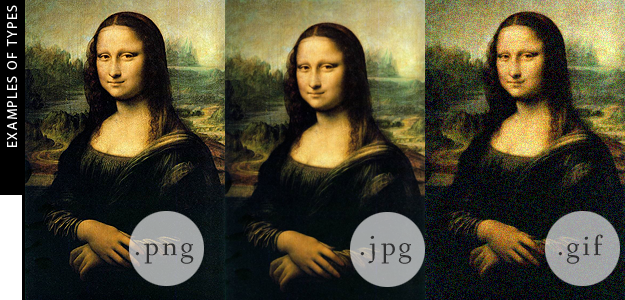
Here's the downlo - file types are based off a mathematical algorithm specifically designed to study the amount of color, or color patterns, in a file and compress them accordingly. This compression is the data that is saved from your photo. Then when the file is processed through your interface (either your documents folders or online) the algorithm is able to rebuild the photo with the data saved. Think the paint colors Da Vinci used for the Mona Lisa. It's essentially turning dear Mona into a paint by numbers your internet browser fills in for you. How many numbers you have to paint is dependent on how you save Mona to start with.


.tif/.tiff - To save a file .tif is to save the Mona Lisa in its entirety. It's not a paint by numbers, but an exactly replica of the original. There is rarely any compression on a tiff file and should be absolutely no change between your pre-saved file and your final .tif file. And what do exact replicas cost, dear reader? In this case, .tif files cost you a whole bunch of computer space. When you save a .tif, you're saving for detail, you're also probably saving and already large image file. Be warned, .tifs are normally used for print media and should not be saved for your online blog. Most internet interfaces don't support their use, and even if they did, most people wouldn't stick around to have the file load.

.png - Dear reader, .png is the dear sweet cousin to the .tif file. After the .tif it saves the most amount of color information and is able to save your files as exact as possible without breaking your computer space bank. If you're saving anything under 1,000px by 1,000px, I'd go for .png. .Png is especially handy if you have "transparent" space on your image. But, we'll get to that later.

.gif - If .png is the dear sweet cousin to the .tif file, .gif is that cousin you don't invite to the family reunion -- or at least not the nice part anyway. Gif files are only able to save a maximum of 256 colors. if you only have 2 to 3 colors in your image, then gif is a good way to go. It takes up a minimum amount of data space and allows for quick and easy loading on a website. (I argue so does a .png nowadays too...)

.jpg - A .jpg is the most used, and most beloved file type around. Why? Because almost all photos taken on a digital camera save as a .jpg. It dances that fine line between quality and file size and is adjustable so that you can choose which is most important when you're saving it. The algorithm for a .jpg takes the most prominent colors and focuses on that data, while discarding other color data in order to compress the overall file. Larger wallpapers for your desktop, family photos, and other larger items are strong examples of good .jpg usage.

.psd - a .psd is purely a photoshop file, and if you have a Windows system, you will not be able to see a file saved as a .psd, let alone view the preview. A .psd saves all the layers, history, and other important data used in creating the file. Images saved as a .psd are usually works in progress or templates that you are going to go back and work with the next time you use photoshop. .psd files and not viewable in a browser if you are using a Windows operating system.

Saving images for the internet
Ultimately, if you want to make a photo/image for your website, the ideal format for it is a .png. They load faster, look cleaner, and can be specifically optimized for online use through photoshop. But just in case you're . jpg devoted, I'll show those steps too.

But before you save, you've got to start your new image properly as well:

Saving a .png file:

Saving a .jpg file:


Really Heather, what's the difference between a .jpg and a .png?
See all that grey in those examples above? If those images weren't .png, that grey would look grainy and the type wouldn't be as clear. .JPG is excellent for colorful images, but not for images where detail is your driving force. You want sharp images with transparent sections - go .png. 

Calendar PSDs


Lately I've been calendar crazy. I think that tends to happen in the New Year to a planner. I love lists, and I love marking things off, and inevitably that means writing too much on a calendar. And that can be even worse than not using a planner at all. Not to mention that without a planner, I forget what day it is more than the sun rises. So, I've developed a solution and I thought I would share it with you dear reader.


A full set of PSDs ready to use for every month of 2012 is now at your finger tips! I've kept them simple, with just a hint of color for major holidays. The weeks run Sunday to Saturday and are adjusted so they lay proportional to a widescreen resolution.  You'll be able to change the opacity, the size, and orientation to suit you. And just so you know: there are no "by" lines on Manhattan to Maine PSDs. Just think -- you can turn anything now into your own personal calendar: desktop, twitter background, iphone lock screen. For example, April will be a lovely Austen-like, calendar-filled month.


... ... ....Opps! Sorry! I got lost in the moment there. Anyway, download the lot as a .zip (and the April wallpaper) below.


Manhattan to Maine


Check back on Friday to see the first real MM post!